
Karaoke software for Mac and Windows: Kara Studio
Kara Studio is Karaoke and lyric video software for Mac and Windows by CM Entertainment, built for studios, singers and creators. Time lyrics to the music, style the text and export high quality MP4 up to 4K.
Download Kara StudioUser guidePricing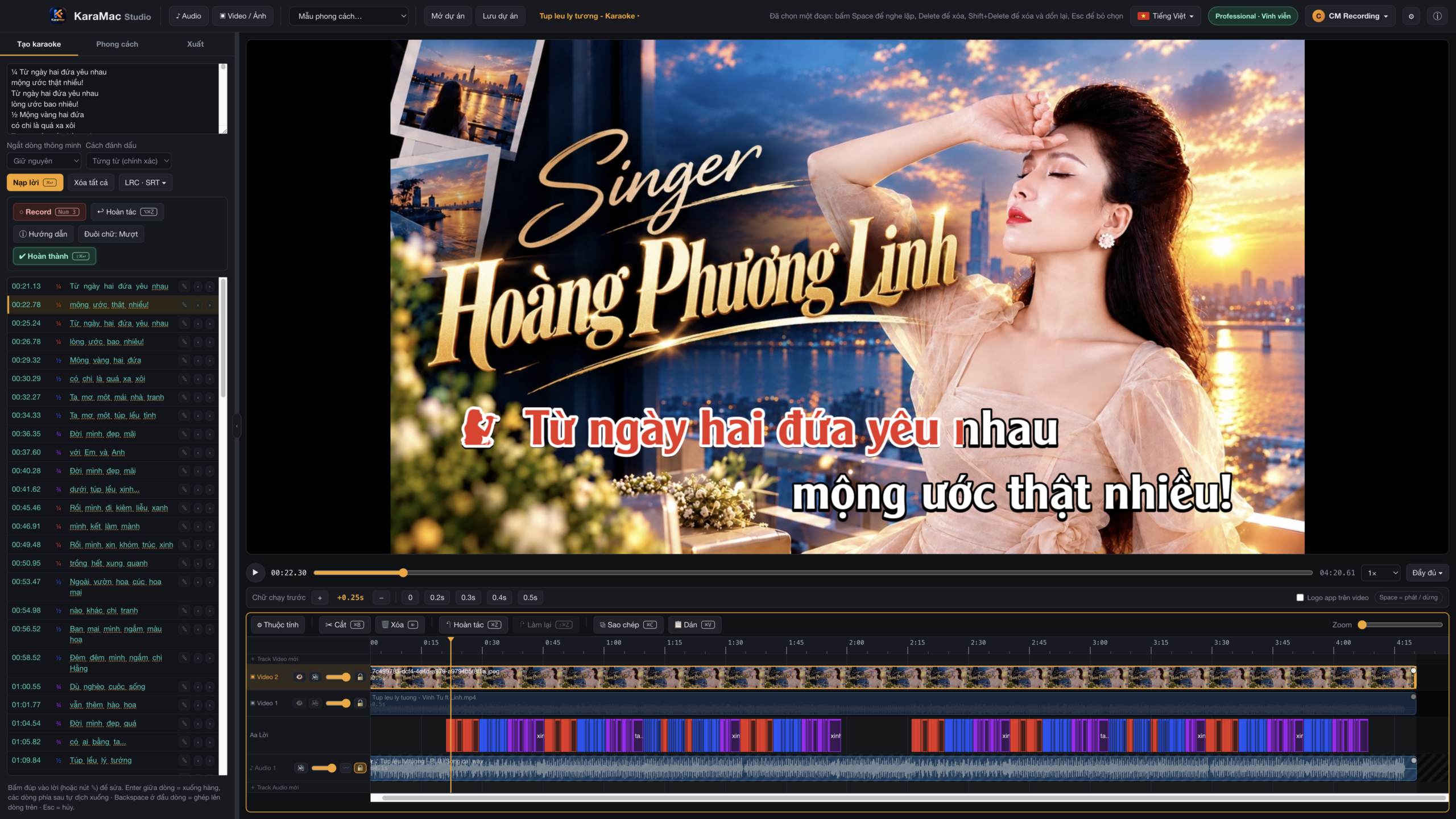
Everything you need to make Karaoke on your computer
From lyric timing to final export, all in one app.
Word-by-word lyric timing
Play the song and tap a key for each word. Words glide into the next one. Finish a full Karaoke track in minutes.
Professional lyric styles
Pick fonts, colors, outlines, a lead-in cue animation and male, female or duet icons.
Multi-track timeline
Drag video, images and music onto multiple tracks. Cut, duplicate, fade in and out, unlimited undo.
Export MP4 up to 4K
720p, 1080p, 4K or original size. Also transparent lyrics overlays (ProRes 4444, WebM, PNG).
12 interface languages
Vietnamese, English, 中文, 日本語, 한국어, ไทย and more, switchable inside the app.
Account-based license
Sign in with email or Google. Your license is tied to your account and activated device.
Who is Kara Studio for?
Karaoke software that fits many needs.
Recording studios
Turn client recordings into Karaoke and lyric videos and deliver fast.
YouTube and TikTok creators
Make animated lyric videos for music channels, covers and mashups.
Karaoke venues and events
Build your own Karaoke library, exported in high quality for big screens.
Singers and teachers
Create practice tracks and performances with word-by-word lyrics.
Download Karaoke software for Mac and Windows
Choose the version for your computer. 10-day free trial with all features.
Karaoke software for Windows
Windows 10 or 11 (64-bit), 8 GB RAM or more
Download KaraWin StudioKaraoke software for Mac
macOS, 8 GB RAM or more. Pick the right chip for your Mac.
Mac with Apple chip (M1, M2, M3…)Mac with Intel chipKara Studio user guide
Pick your operating system, then tap a step to see the details. The steps are the same; only the installation and keyboard shortcuts differ.
1Install and open the app
- In the Download section above, click Download KaraWin Studio.
- Open the downloaded .exe file and follow the installer.
- If Windows shows the “Windows protected your PC” screen (SmartScreen warning), follow these two steps (only once). If you do not see it, skip this and install as usual:
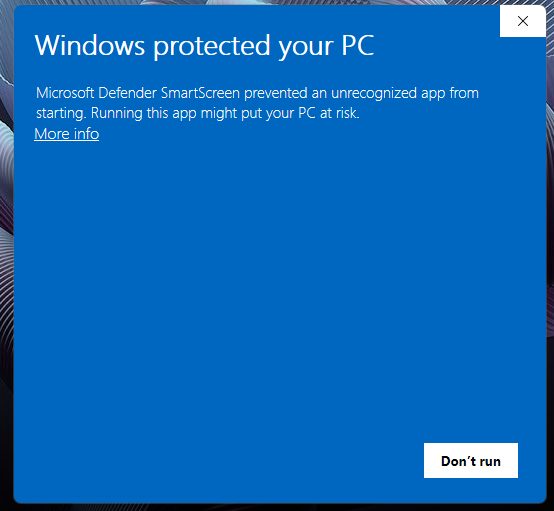
Step 1
When “Windows protected your PC” appears, click More info.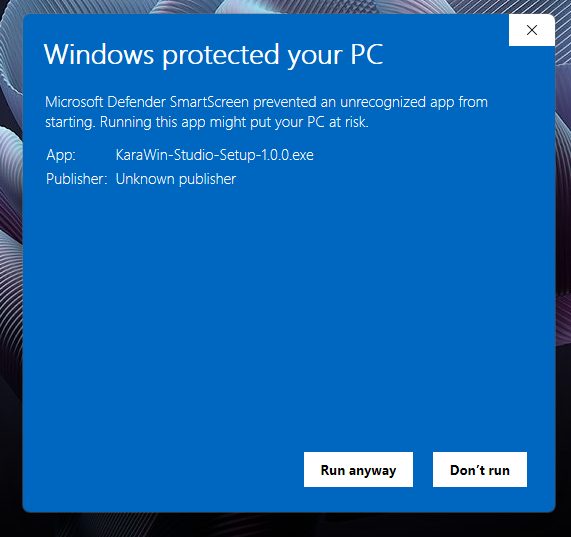
Step 2
Click Run anyway to start the installer. - Open KaraWin Studio and sign in with email or Google to start the 10-day trial.
- Choose the right build: Apple chip (M1, M2, M3…) or Intel chip. Not sure? Click the Apple menu and choose About This Mac.
- Open the downloaded .dmg and drag the app into Applications (if the install window appears).
- On first launch, macOS may show a security warning because the app was downloaded from outside the App Store. If your Mac shows no warning, just use the app as usual. If it does, follow these steps (one time only):
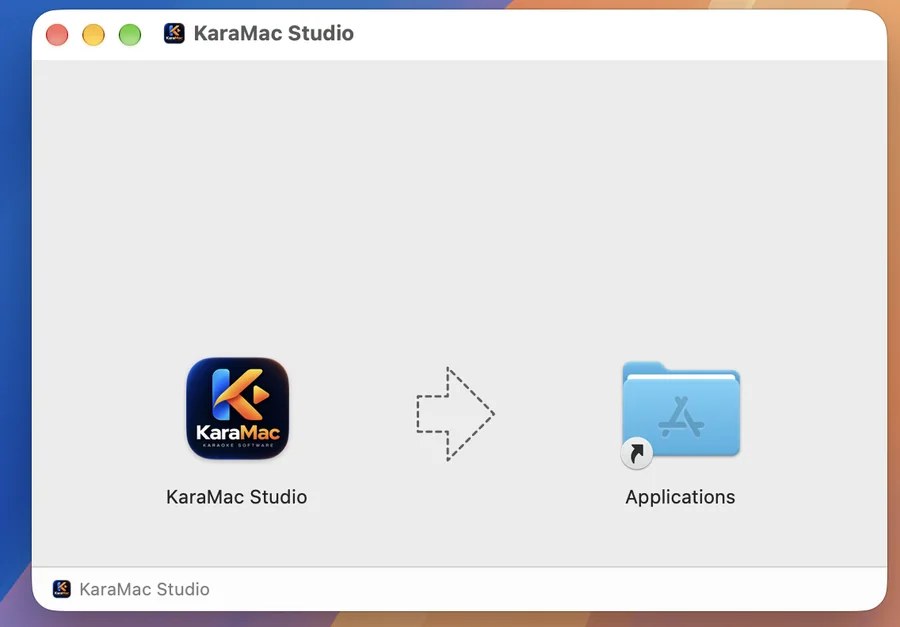
Step 1
Open the .dmg file and drag the KaraMac Studio icon into the Applications folder.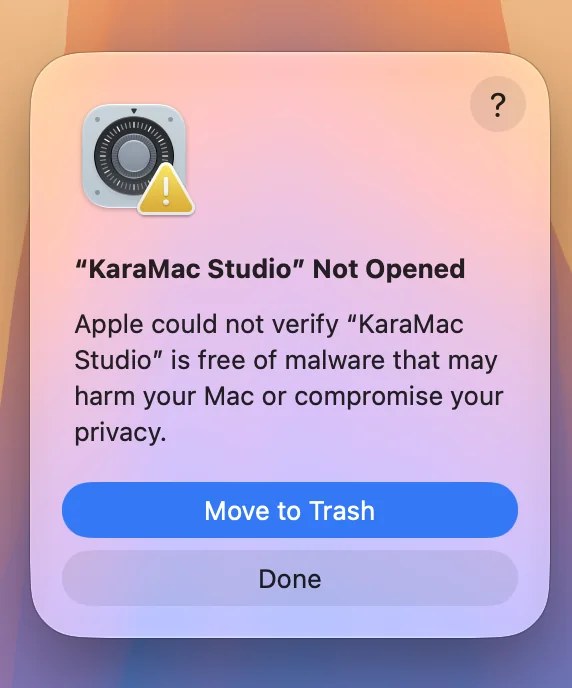
Step 2
Open the app from Applications. If macOS shows “Not Opened”, click Done.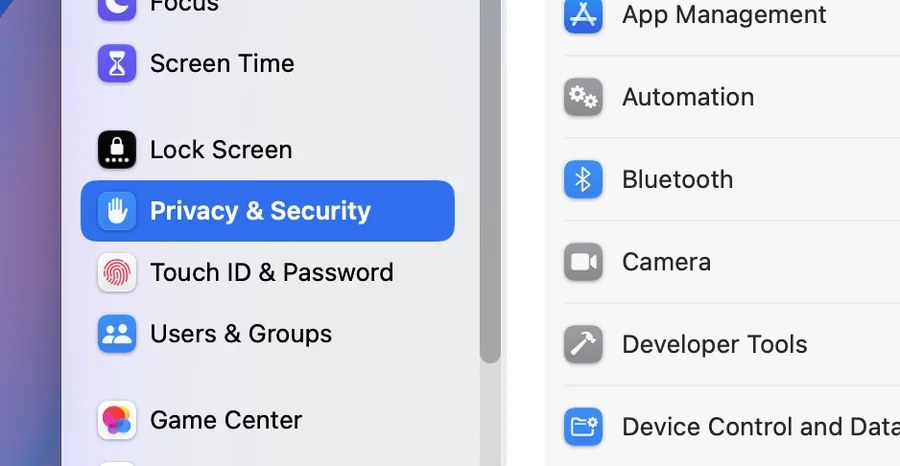
Step 3
Open System Settings and choose Privacy & Security.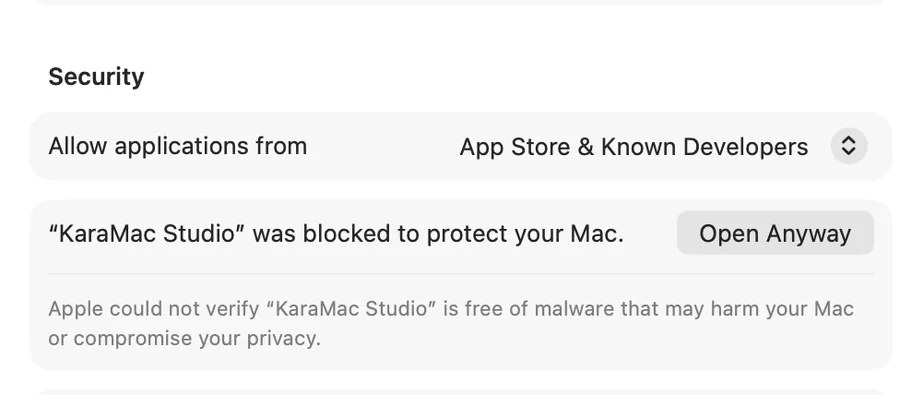
Step 4
Scroll down to Security and click Open Anyway.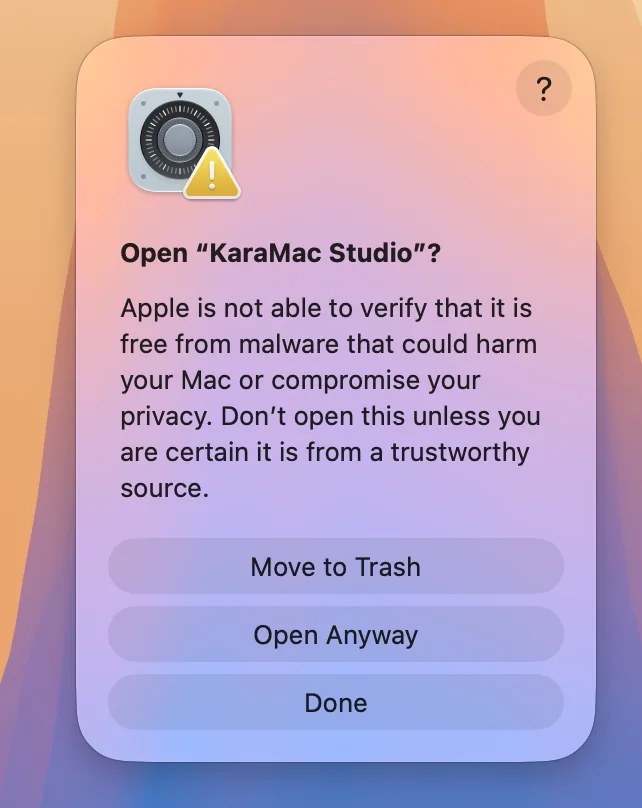
Step 5
The “Open KaraMac Studio?” window appears: click Open Anyway.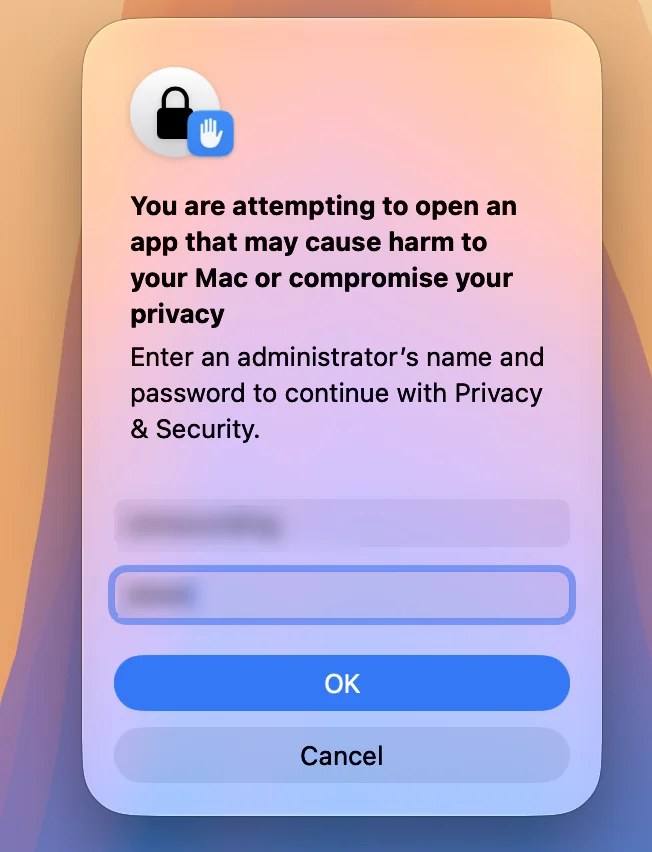
Step 6
Enter your Mac password (or use Touch ID), then click OK.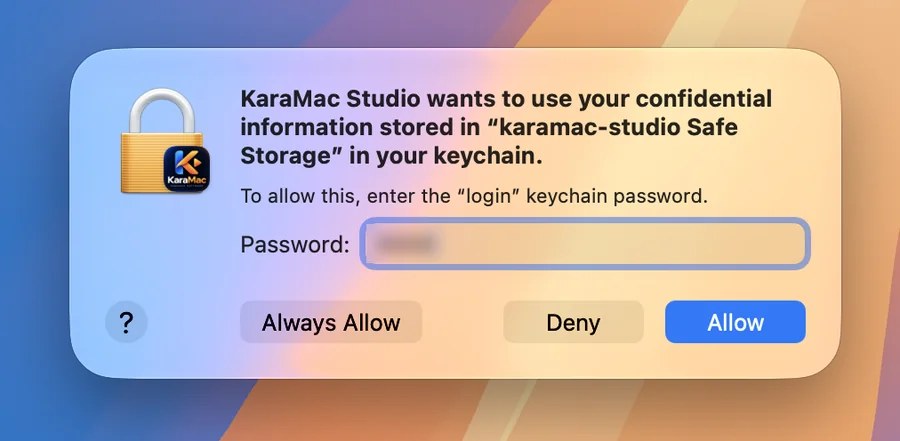
Step 7
If macOS asks for Keychain access, enter your Mac password and click Always Allow. If you do not see this window, skip this step. - Sign in with email or Google to start the 10-day trial.
2Add the vocal version and the beat
Click ♪ Audio in the top bar (or drag and drop files into the app window). You need two things:
- The song with vocals: you listen to it to time each word. If you use a video of someone singing (the video already contains the music and vocals) you can skip this file and just add that video in the video background step.
- The beat (instrumental, no vocals): this is the audio people will hear in the final Karaoke.
The first audio file is the main track used for timing lyrics. To change it, right-click a clip on the timeline and choose Use as main track.
3Sync the beat with the vocal version
The two files are usually a few seconds apart (each starts with a different amount of silence). Kara Studio aligns them automatically by comparing their waveforms:
- Select both clips on the timeline (hold Ctrl⌘ or Shift and click each one).
- Right-click and choose Sync audio (or click the ⇆ Sync audio button that appears, or press Ctrl⌘+AltOption+Y).
- Press Play and listen: the beat and the vocal version should be in step.
4Mute, hide video and lock tracks
Every timeline track has small buttons at the start of its row:
- 🔊 Mute / unmute the track. While timing lyrics, keep the vocal version audible. When finished, mute the vocal version so the Karaoke contains only the beat.
- 👁 Show / hide a video or image track. Hide a track you do not want in the final video.
- 🔒 Lock the track: its clips can no longer be selected, dragged, cut or deleted. Lock tracks you have finished so you cannot nudge them by accident.
- The small slider sets that track’s volume.
5Add a video or image background
Click ▣ Video / Image to add a background. Each clip sits on its own timeline track, so you can stack layers, remove a green screen and add transitions. If you use a video of someone singing, add it here and sync it with the beat as in step 3. Remember to mute that video before exporting if you only want the beat.
6Paste lyrics into the lyrics box, then click Load lyrics
On the Create Karaoke tab, paste the lyrics into the lyrics box (the large text area at the top left), one line per sentence.
- Choose the marking mode (the drop-down next to Record): Word by word (precise) is recommended for Karaoke, so the lyrics follow each sung word. Line by line (fast) is for lyric MVs, voice-over and subtitles: each line appears once, and you tap once per line.
- Set the singer (Male / Female / Duet): every lyric line has a small dot at the start, before the first word. Click the dot to cycle the icon: Male, Female, Duet, then back to Default. Or right-click any word on that line and a list appears so you can pick Male, Female, Duet or Default directly. Following lines keep that voice until you change it. Default means a single voice with no icon.
- If you already have timed lyrics (LRC, SRT, ASS, VTT), import them with the LRC · SRT button.
7Time every word (Record)
- Click Record or press 3 on the number pad to turn recording on.
- Click Record on screen (or press 3 on the number pad, if your Mac keyboard has one) to turn recording on.
- Listen to the song and press Space once per word (right when that word starts).
- Long note? Hold Space until the word ends, then release.
- At the end of the lyrics Record turns off and Space goes back to play / pause.
The “Word tail” button: Smooth or Precise? This button next to Record decides when a word ends:
- Smooth (default, recommended): you only care about tapping when a word starts. The word automatically stretches to meet the next one, so there are no gaps. Best for most songs.
- Precise: a word lasts exactly from when you press to when you release Space (at least 0.1 s), so gaps between words are kept. Use it for songs with clear pauses, or for Rap and fast songs where you want to control each word’s end.
8Click Done and fine-tune on the timeline
When you finish marking, click ✔ Done to lock it and avoid accidental taps. To change something, click Edit. You can still drag individual words on the timeline to adjust them.
- Drag a clip to move it, drag its edge to trim, drag the corner dot to create a fade in / fade out.
- Right-click to cut, duplicate, delete or extract audio. Split at the playhead: Ctrl⌘+B. Duplicate: Ctrl⌘+D.
- Words slightly off? Select them and nudge with AltOption+← / → (0.05 s) or AltOption+Shift+← / → (0.5 s).
9Time saver: copy repeated lyrics
A chorus or verse that repeats later (for example after an instrumental break) needs no retyping and no re-timing. Just copy and paste:
- Press and drag to select the words / lines you want to reuse (in the lyrics track on the timeline).
- Click ⧉ Copy (or Ctrl⌘+C).
- Move the playhead (the vertical line) to where the passage returns, after the instrumental.
- Click 📋 Paste (or Ctrl⌘+V). The words and their timing are pasted as they were.
10Style it on the Style tab
Pick the font, unsung / sung colors, outline, shadow, lead-in effect, singer icons, title and countdown. Many presets are in the Style presets list at the top. The preview shows exactly what the exported video will look like, and you can drag the title, logo and lyric lines right on it. Happy with a look? Save style to reuse it on other songs.
11Add a song title (when you need one)
Many songs already have a title in the music video, so Kara Studio does not add a title by default. When you need one, open the Style tab, find Video title and follow these steps:
- Turn on Show title on video.
- Type the Song title. Below it are the info rows: in each row, the first box is the label (for example Composed by, Performed by, Studio) and the second is the name. Leave row 3 empty to hide it.
- Pick a Design, Accent color, Box color and Fade effect.
- Set the position with X axis, Y axis, or drag the title box right on the preview.
- Adjust Start (s) and Display time (s). By default the title appears at 0.5 s for 7 seconds.
Replace all sample text with your own before exporting. If you do not need a title, leave the switch off.
12Export your video
Before exporting, double-check: mute the vocal version / singing video (the 🔊 button) so only the beat remains. Then open the Export tab (or Ctrl⌘+E), choose a format and a resolution of 720p, 1080p, 4K or original size, then export to MP4. To composite in another editor, export lyrics on a transparent background (ProRes 4444, WebM VP9, PNG sequence). You can also export lyrics as LRC or SRT, and batch export several songs (Ctrl⌘+Shift+E).
Handy shortcuts
Pricing
One key works on Windows or Mac (one device per key).
Monthly
- All features
- Export up to 4K
- Free updates
6 months
- All features
- Free updates
Yearly SALE
- All features
- Free updates
Prices in USD. Bank transfer in VND is converted at the daily exchange rate at checkout.
Frequently asked questions
Which operating systems does Kara Studio support?
Windows 10/11 (64-bit) and macOS (Apple Silicon and Intel). Each system has its own installer in the download section above.
Why can I not mark any words?
You need to paste the lyrics into the lyrics box (one line per sentence) and click Load lyrics first. Then click Record and press Space for each word.
Do repeated lyrics need to be timed again?
No. Select the timed passage, click Copy, move the playhead to where it repeats and click Paste. The words and timing are kept.
How long is the free trial?
10 days with all features. You need to create an account (email verification or Google sign-in) to start.
How many devices can one license be used on?
One license covers one device and one account. To use both Windows and Mac you need one license per device.
I paid but my license is not active. What now?
Contact CM Recording with your payment proof. We issue a key for your account email, paste it into the app and it works right away.
Can I activate without Internet?
Yes, offline activation by device ID is available. Contact us for help.
What happens when my license expires?
Your projects still open. Export falls back to trial limits until you renew.
Can I export lyrics with a transparent background?
Yes. ProRes 4444, WebM VP9 and PNG sequences are supported so you can composite in other editors.